
After you win an item, and your invoice has been paid, you can schedule a pickup time directly from your dashboard.
Note that pickup scheduling is only available if the seller has enabled appointment slots for that auction.
1. Go to your dashboard
- Click the Dashboard button at the top right of the site, then select the Invoices tab.
2. Find your invoice
- Locate the invoice for the items you won.
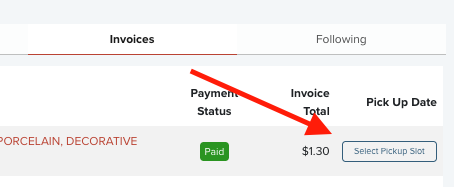
- There should be a green Paid badge under Payment Status.
- If pickup scheduling is available, you’ll see a Select Pickup Slot button next to your invoice total.
3. Choose a pickup time
- Click the Select Pickup Slot button.
- A window will open, showing:
- The pickup address
- Contact information for the auction manager
- All available pickup times
- Click on the time slot you prefer
4. Save your appointment
- After selecting your appointment time, click Save in the lower right corner to confirm
- You will receive an email confirmation of your pickup time, along with the seller’s pickup rules for that auction.
What if there are no time slots available?
If you don’t see any pickup times available, it usually means one of the following:
- All available pickup appointments are already fully booked
- The pickup window is very soon, and online scheduling has closed
- The seller has chosen to coordinate pickups directly instead of through the system
If you need assistance or special arrangements, contact the auction manager using the email or phone number shown on your invoice.